The code map
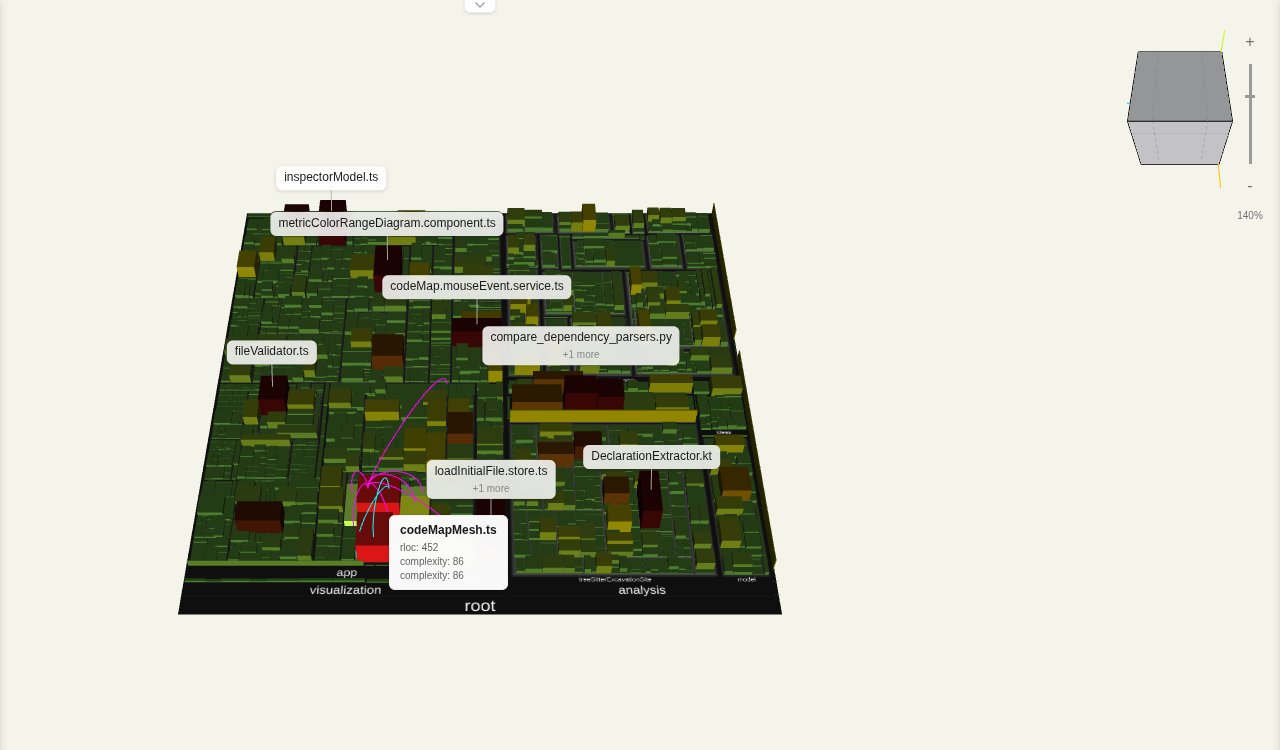
The code map is the heart of the Metric view: your codebase drawn as a city. Every file is a building and every folder a district, and the metrics you pick decide how big, how tall and which color each building is. Large, complex or often changed files stand out at a glance.
The city metaphor
Section titled “The city metaphor”- A file is a building. Every file of the map stands on the ground as one building.
- A folder is a district. Folders group their files into nested districts, so the map mirrors the folder tree. The root of the project is the ground plate at the bottom. Files that sit together in the code stand together on the map.
Three visual dimensions carry metrics, each set in the metric bar:
- Area: the footprint of a building, for example real lines of code (
rloc). - Height: how tall a building is, for example
complexity. Outliers rise above the skyline. - Color: the color of a building on a scale from green through yellow to red, for example by
complexityagain.
When the map carries edges, such as co-changing files, they are drawn as arcs between the buildings. See Edges.
The city is the default layout. The same data can also be laid out along streets or as flat rings around a center. See Map layouts.
Navigating
Section titled “Navigating”| Action | Mouse | Keyboard |
|---|---|---|
| Rotate | Drag with the left button | Shift, Ctrl or Cmd + arrow keys |
| Pan | Drag with the right button | Arrow keys |
| Zoom | Mouse wheel, or drag with the middle button | |
| Zoom to center | Hold Alt while zooming |
The mouse wheel zooms towards the pointer; with Alt held it zooms towards the center of the view. The viewcube snaps to fixed angles, and Center map in the map tools brings the whole map back into view.
The tallest buildings get a label with their file name. How many, and what a label shows, is set in Labels.
Inspecting buildings
Section titled “Inspecting buildings”- Hover a building to highlight it. A tooltip names it and shows its area, height and color values, its edges are drawn, and the bottom bar shows its path.
- Click a building or a folder to select it and open the Inspector with all its metrics.
- Double-click a building to open its source link in a new tab, when the map has a link for the file.
Context menu
Section titled “Context menu”Right-click a building or folder, on the map or in the Explorer, for its context menu:
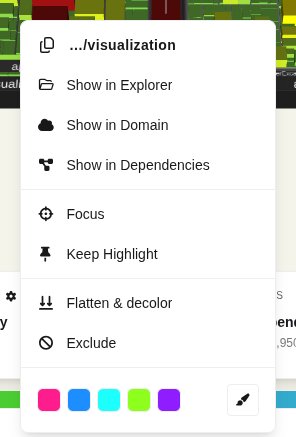
- The path at the top: click it to copy the full path to the clipboard.
- Show in Explorer: reveals the node in the Explorer tree. Not shown when you opened the menu from the Explorer.
- Show in Domain / Show in Dependencies: opens the node in another view, when the map has data for it.
- Focus: folders only. See Focus.
- Keep Highlight: keeps the node and its children highlighted after the pointer leaves. Remove Highlight clears it.
- Flatten & decolor: flattens the node and its children to the ground and grays them out, keeping their space. A flattened node offers Show instead.
- Exclude: removes the node and its children from the map.
- Folder colors: for folders, the swatches mark the folder’s floor with a color; the brush picks any color.
Flattened and excluded nodes are listed in the Explorer, where you can remove the rules again. See Managing rules.
Focus on a folder to work with that part of the project alone. The map is laid out anew around the focused folder, and the Explorer lists only that folder under a Focus mode banner.
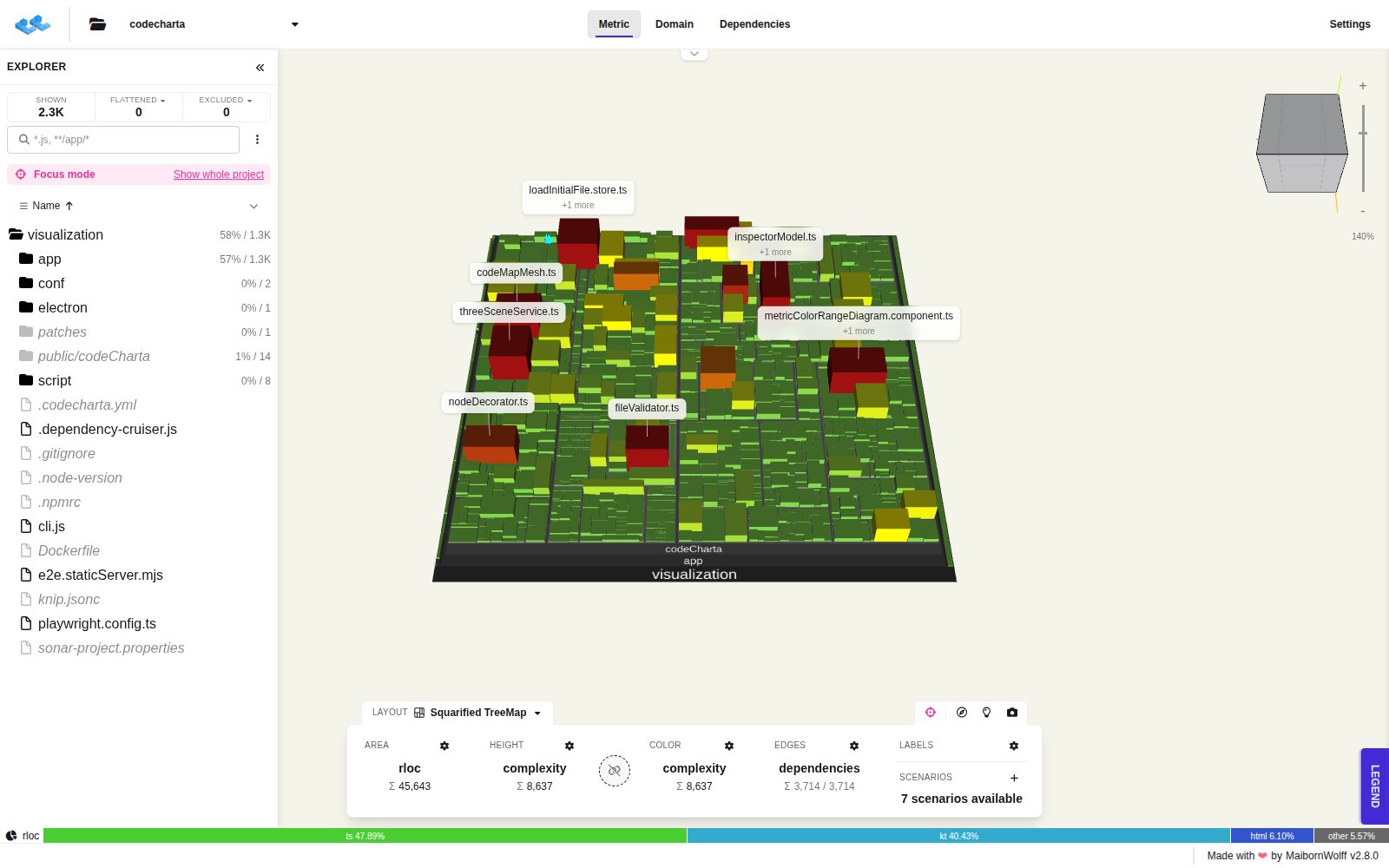
- Only folders can be focused, one at a time. Focusing another folder replaces the focus.
- The focus is shared by all views: the Domain and Dependencies views limit themselves to the same folder.
- To leave the focus, use Unfocus in the context menu or in the map tools, or Show whole project in the Explorer banner. On a folder below the focused one, the context menu offers Unfocus Parent.
- In the Sunburst and Radial TreeMap layouts, clicking the center while it shows the focused folder asks whether to unfocus and go up.