Map Tools
The small tab on the right edge of the bar at the bottom holds the tools of the current view. Each tool is an icon; point at it to see its name.
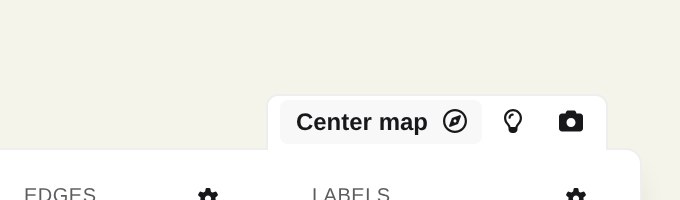
Tools of the Metric view
Section titled “Tools of the Metric view”- Unfocus (crosshairs) – only shown while you are focused on a folder. Leaves the focus and shows every folder again.
- Center map (compass) – recenters and re-fits the camera so the whole map is in view again. Use this whenever you have orbited or zoomed away and want a clean overview. Right-click the tool to set the zoom level it centers at: a slider, Use current zoom and Reset.
- Flashlight (lightbulb) – toggles a hover effect for presenting: when enabled, hovering over the map lights up the buildings under the pointer. Click it again to turn the effect off.
- Screenshot (camera) – takes a screenshot of the map. Depending on Screenshot to clipboard in the Settings, it either saves the image as a file or copies it to the clipboard. The button briefly confirms with Copied! or Saved!, or warns when the screenshot could not be taken.
In the Sunburst and Radial TreeMap layouts only Unfocus and Screenshot are available.
Tools of the other views
Section titled “Tools of the other views”- Domain view – Unfocus, Show whole cloud (undoes zooming and panning of the word cloud) and Screenshot.
- Dependencies view – Unfocus, Reset layout (puts every dragged box back in its place; shown once you have dragged one), Show whole graph and Screenshot.
Screenshot shortcuts
Section titled “Screenshot shortcuts”The screenshot is also available from the keyboard, in whichever view is on screen:
- Ctrl+Alt+S (macOS: Control+Option+S) — save the screenshot as a file
- Ctrl+Alt+F (macOS: Control+Option+F) — copy the screenshot to the clipboard
The shortcuts are the way to get an open legend into the picture.