Domain View
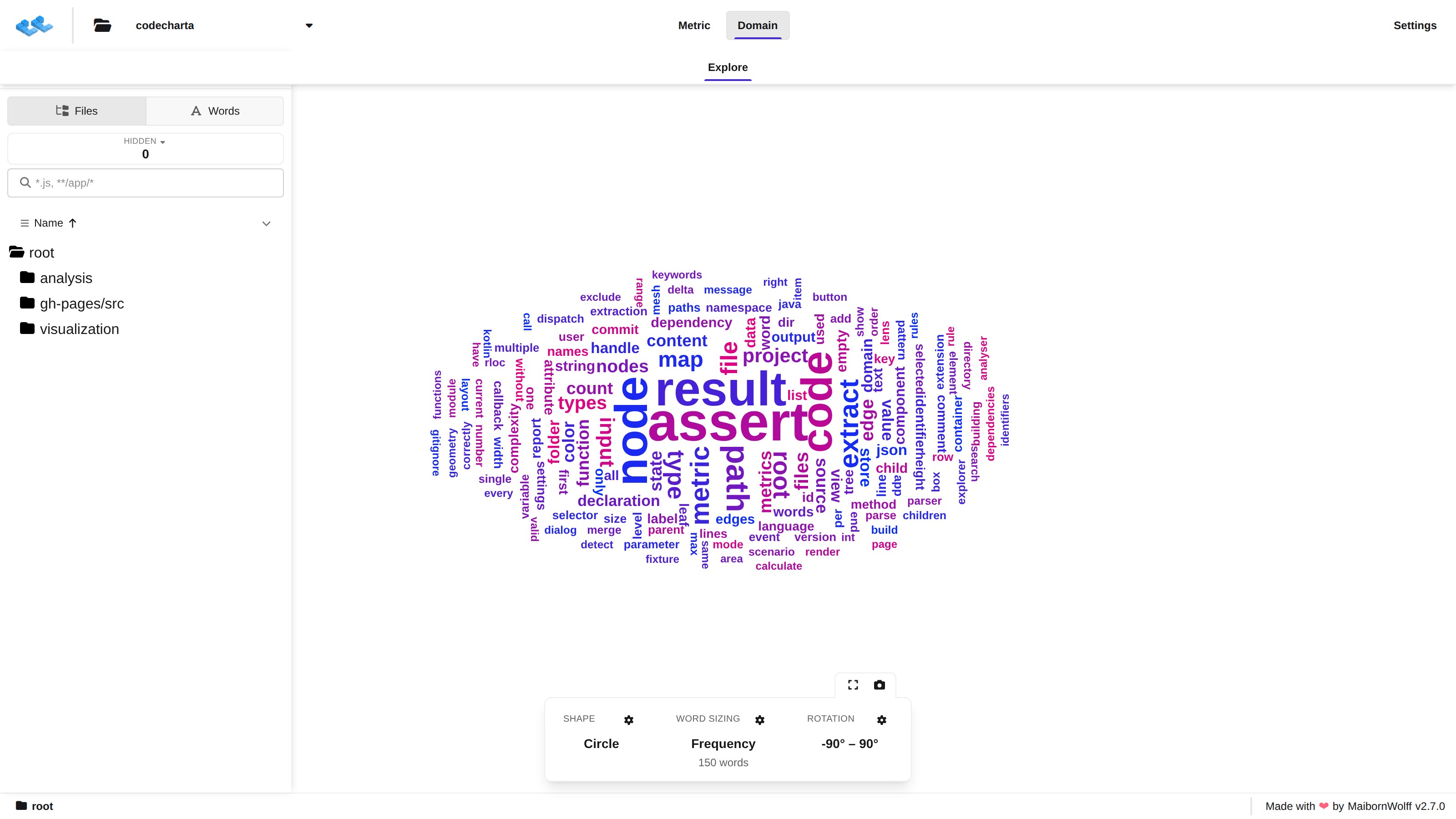
The Domain view shows the vocabulary of your code as a word cloud: the words that appear in identifiers, comments and strings, sized by how much they matter. It answers a different question than the metric map — not how big or complex is this code, but what is it about.
Opening the view
Section titled “Opening the view”The Domain tab appears in the top bar when the loaded map carries domain data. Create it with the Domain Language parser (ccsh domainlanguageparser).
The word cloud
Section titled “The word cloud”The cloud shows the words of whatever is selected in the Explorer: the whole project at first, a single folder or file once you pick one. The bottom bar names the current selection.
- Hover a word to see its frequency and its TF-IDF value.
- Click a word to open it: it is marked in the cloud and pinned in the Explorer, with a breakdown of where it occurs.
- Click the empty cloud to let go of the opened word.
- Right-click a word for its menu: copy the word, Search word (puts it into the Explorer’s word search) and Hide word (drops it from the cloud and the word list).
- Mouse wheel magnifies the cloud and dragging moves it. Show whole cloud in the tools tab brings the whole cloud back; Screenshot takes a picture of it.
The Explorer: Files and Words
Section titled “The Explorer: Files and Words”The Domain view’s Explorer has two modes, switched at its top:
- Files – the file tree, as in the other views. Selecting a folder or file scopes the cloud to it. Files and folders without domain words are greyed out. Right-clicking a node offers Show in Metrics / Show in Dependencies and Focus for folders.
- Words – every word of the project with its share of all occurrences and its count. Sort the list by Occurrences, Name or Relevance, and search it by typing words separated by commas; matches are marked in the cloud.
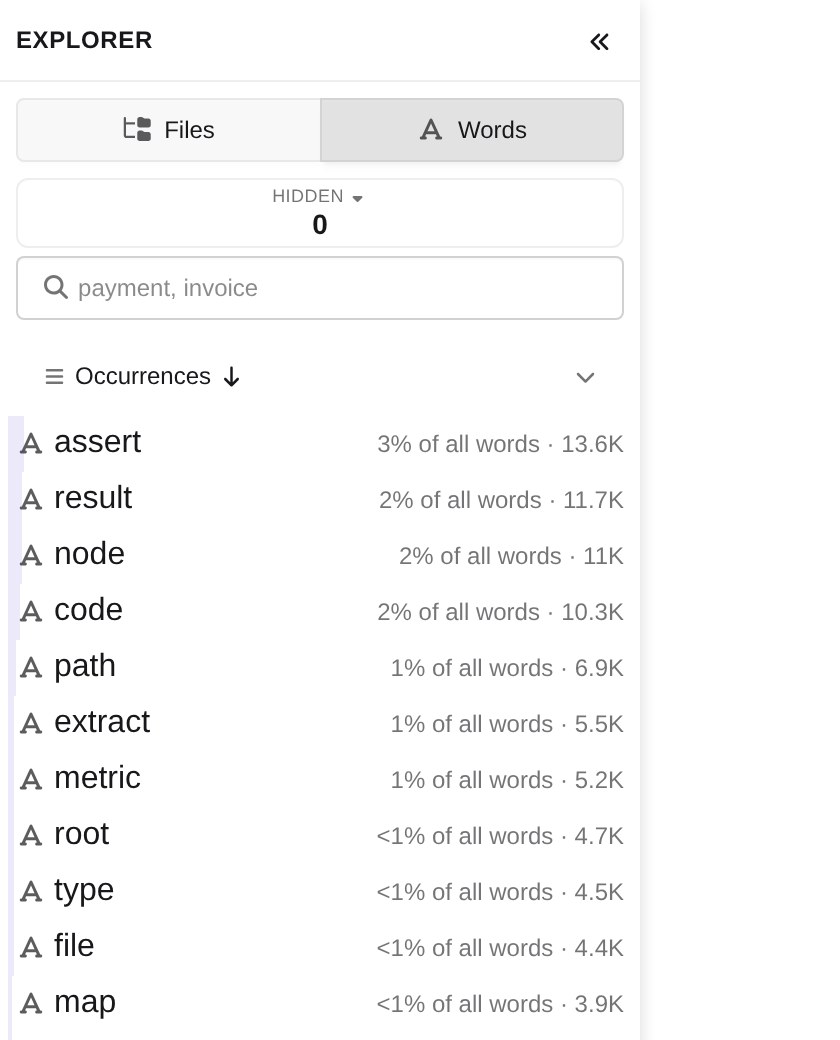
Opening a word — from the list or from the cloud — pins it in a strip at the top of the Explorer and breaks it down over the file tree, so you can see which folders and files use it most. Unpin this word closes it again.
The HIDDEN chip counts the words you have hidden. Click it to list them and bring single words, or all of them, back.
Focusing a folder limits the cloud and the word list to that folder; the focus is the one the other views share.
The domain bar
Section titled “The domain bar”The bar at the bottom shapes the cloud. Each column has a gear icon for its settings.
- Shape – the outline the words are laid out in: Circle, Heart, Diamond, Triangle, Pentagon, Star, M, or a Custom SVG you upload (kept for as long as the tab is open).
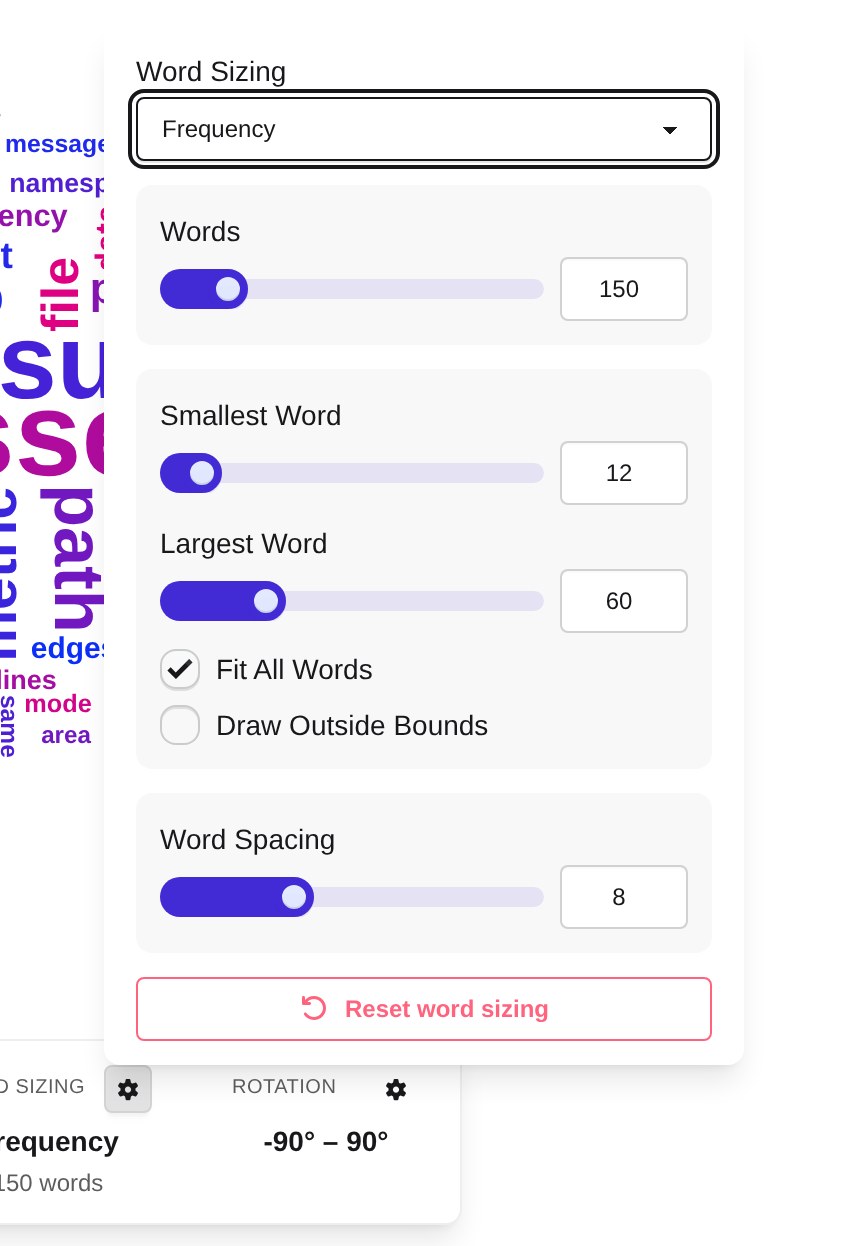
- Word Sizing – what drives a word’s size and how many words are drawn:
- Word Sizing – Frequency sizes words by how often they occur; TF-IDF sizes them by how distinctive they are, not by raw count. It is only available when the map carries TF-IDF scores.
- Words – how many of the most important words are drawn.
- Smallest Word / Largest Word – the sizes the least and the most important word are drawn at.
- Fit All Words and Draw Outside Bounds – how to deal with words that do not fit into the shape.
- Word Spacing – spacing between words in pixels; larger means fewer, more spread-out words.
- Rotation – the range of angles words may be rotated by (Min Rotation, Max Rotation) and the Rotation Step they are rotated in multiples of.
Each settings popover has its own reset button.