Inspector
The Inspector shows everything the map knows about one file or folder: where it lives, the values behind its area, height and color, and every other metric measured for it. Click a building or a folder on the map to open it on the right; hovering only highlights. The Dependencies view has an Inspector of its own.
Header
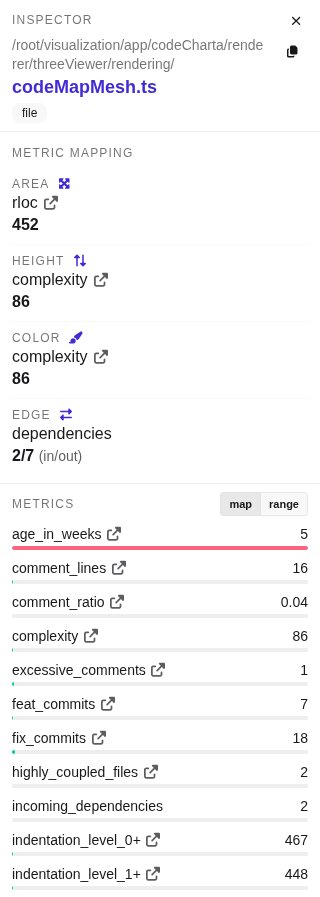
Section titled “Header”- The parent path and the name of the node. When the map has a link for the file, the external-link icon next to the name opens it.
- A file or folder badge. A folder also shows its number of files.
- Copy path copies the full path to the clipboard. The path at the top of the context menu does the same.
- Close inspector (✕) closes it.
Drag the left edge of the Inspector to make it wider or narrower, or focus the edge and use the arrow keys. A double-click on the edge restores the default width.
Metric Mapping
Section titled “Metric Mapping”Metric Mapping shows the metrics on the map right now and this node’s value for each:
- Area, Height and Color, as chosen in the metric bar.
- Edge, when the map has edges: the number of incoming and outgoing edges, shown as
in/out.
A metric name links to its definition when the map provides one, and · inverted marks an inverted dimension.
Metrics
Section titled “Metrics”Metrics lists every metric of the node in alphabetical order, whether it is on the map or not. Metrics without a value are moved into a collapsed Empty metrics group at the end. A metric name links to its definition when the map provides one.
The map / range toggle changes the small bar under each value:
- map (the default): the node’s share of the map’s total for that metric, so you see how much this one file contributes.
- range: where the value lies between the smallest and the largest value of all files, so you see whether the file is low, average or high compared to the rest.
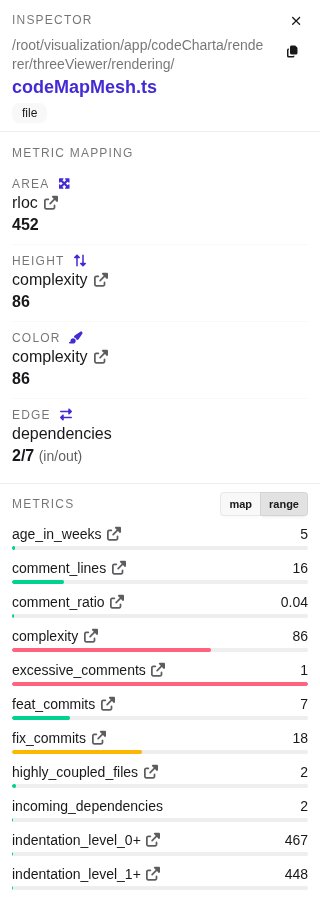
The values stay the same; only the bars change. Their color follows the direction of the metric: greener is better, redder is worse.
In Compare
Section titled “In Compare”In Compare each value comes with its change, such as Δ-162, in the delta
colors. A folder also shows how many of its files were added, removed and changed between the two maps.