Scenarios
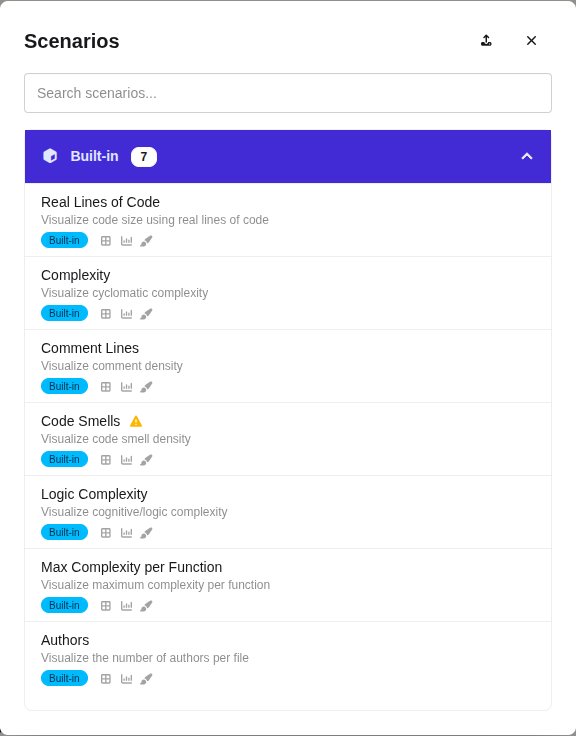
A scenario is a saved set of map settings. Instead of picking the area, height and color metrics and their options one by one, you apply a scenario and the map switches in one step. Built-in scenarios cover common questions such as complexity or comment density; your own scenarios capture the views your team keeps coming back to.
Open the list with N scenarios available in the SCENARIOS column of the metric bar. The + next to SCENARIOS saves the current settings as a new scenario.
What a scenario stores
Section titled “What a scenario stores”The settings are grouped as follows:
| Group | Settings |
|---|---|
| Area | Area metric, margin, invert area, floor labels |
| Height | Height metric, height scaling, invert height |
| Color | Color metric, color follows height metric, color range, gradient mode, colors, folder color overrides |
| Edges | Edge metric, edge metric enabled, edge previews, edge curve height, outgoing and incoming edges, only nodes with edges, edge colors |
| Labels | Top labels, top labels scope, label size, label mode, show node names, show metric values, group overlapping labels, labels by color metric |
| Camera | Position and zoom |
| Filters | Excluded nodes, flattened nodes, flattened and excluded by metric, focused folder |
The map layout and the distribution bar are not part of a scenario.
Built-in scenarios
Section titled “Built-in scenarios”Seven Built-in scenarios set the area metric to rloc (real lines of code) and pick a fitting metric for height and
color:
- Real Lines of Code: code size.
- Complexity: cyclomatic complexity.
- Comment Lines: comment density.
- Code Smells: code smell density.
- Logic Complexity: cognitive complexity.
- Max Complexity per Function: the most complex function of each file.
- Authors: the number of authors per file.
They are always available. When a scenario uses a metric the loaded map lacks, its entry shows a warning icon, and the missing metric is left as it is when you apply the scenario.
Applying a scenario
Section titled “Applying a scenario”The list groups the scenarios:
- Current Map: your scenarios bound to a map that is loaded.
- Global: your scenarios that are not bound to a map.
- Built-in: the scenarios above.
- Other Maps: scenarios bound to maps that are not loaded.
The search box filters by name and description. Click a scenario to open Apply: and its name. Tick which settings to apply; the camera starts unticked, so applying never moves the view unless you ask for it. Apply all applies everything the scenario holds, the camera included. Metrics the map lacks are listed and left unchanged.
Saving your own scenario
Section titled “Saving your own scenario”Click the + next to SCENARIOS to open Save Scenario:
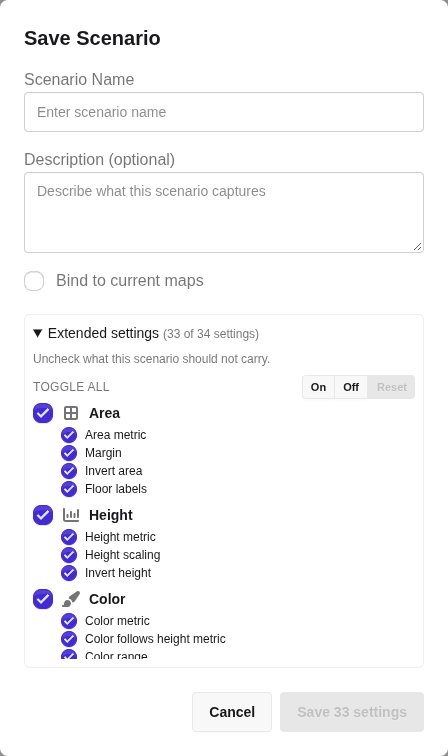
- Scenario Name: required.
- Description (optional): a note on what the scenario is for.
- Bind to current maps: records the names of the loaded maps. The scenario is then listed under Current Map while those maps are loaded and under Other Maps otherwise. Unticked, the scenario is Global.
- Extended settings: choose setting by setting what the scenario stores, with On, Off and Reset for all of them. By default every setting except the camera is ticked, and the save button names how many settings it saves, for example Save 33 settings.
Your scenarios are stored in the browser and stay available across sessions on the same machine.
Import, export and delete
Section titled “Import, export and delete”- The upload icon in the header of the list (Import scenarios) reads scenarios from files.
- Export scenario on an entry downloads it as a file to share or import elsewhere.
- Delete scenario removes it after a confirmation.
Built-in scenarios cannot be exported or deleted.