
Explorer
The Explorer on the left lists the files and folders of the loaded maps as a tree. Search it with patterns, and turn patterns or metric conditions into rules that flatten code into the background or exclude it from the map, so the code you care about stands out.
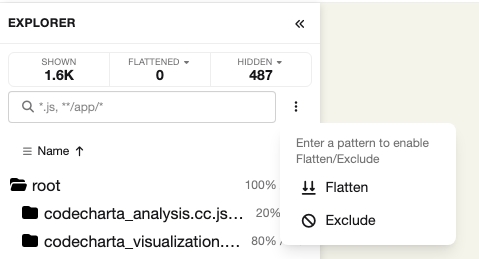
At the top, the counters SHOWN, FLATTENED and EXCLUDED sum up the map. Below them are the search box with its ⋮ menu, the sort control and the tree. Each row shows its share of the area metric and its number of files.
- Drag the right edge of the Explorer to resize it, or focus the edge and use the arrow keys. A double-click on the edge restores the default width.
- Collapse explorer («) folds it into a small strip with the search box; the tree button brings it back.
- While a folder is focused, the Explorer lists that folder alone under a Focus mode banner; Show whole project leaves the focus.
Every view has its own Explorer with its own search, sort order and width. The Dependencies view has no FLATTENED counter, and the Domain view switches its Explorer between files and words.
Searching
Section titled “Searching”Type a pattern into the search box. The search uses .gitignore-style patterns:
*.jsmatches every JavaScript file.**/app/*matches everything directly inside anyappfolder.
Separate several patterns with commas, for example *.js, **/app/*. The clear button empties the search.
The search marks the matching files in the tree and grays out the rest on the map; SHOWN counts the matches. It hides nothing on its own.
Sorting
Section titled “Sorting”The sort control orders the tree by Name, Number of Files or Area Size. The arrow next to it switches between ascending and descending.
Flatten vs. Exclude
Section titled “Flatten vs. Exclude”- Flatten keeps the buildings on the map but lays them flat and grays them out. They recede into the background and still give context, which suits generated or vendor code.
- Exclude removes the buildings from the map, so they take no space. Use it for code that only adds noise, such as test fixtures.
The ⋮ menu next to the search box offers both in two forms:
- Flatten / Exclude turn the current search pattern into a rule. They are disabled while the search is empty.
- Flatten by metric… / Exclude by metric… open an editor in which you pick a metric, a comparison (greater than, at least, less than, at most, equal to, between) and a threshold. The editor shows the distribution of the metric and how many files the condition matches before you add the rule.
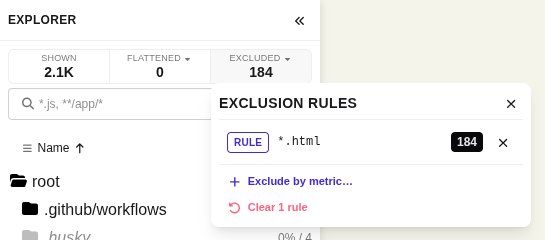
A rule keeps applying when the map changes: a metric rule is evaluated again whenever the loaded maps or metrics change. A pattern with wildcards becomes a RULE; flattening or excluding a single file or folder from its context menu adds a MANUAL entry. The distribution bar flattens or excludes a whole file extension.
Managing rules
Section titled “Managing rules”- SHOWN: buildings on the map that are neither flattened nor excluded. Large numbers are abbreviated, such as
2.3K. Hover the counter to see how many of them have no area in the current area metric. - FLATTENED: buildings flattened by a rule.
- EXCLUDED: buildings excluded by a rule.
Click FLATTENED or EXCLUDED to list their rules, each marked RULE or MANUAL with the number of buildings it affects. The ✕ next to a rule removes it. Below the list you can add a rule by metric or clear the whole list.
Reset filters in the Settings removes every flatten and exclude rule at once.