Loading maps
The Web Studio shows the maps the CodeCharta Shell writes: a .cc.json file or its
gzip-compressed .cc.json.gz. You open them from your disk with the folder button, or from a URL with query
parameters. To create a map of your own code, run ccsh analyse.
Open maps from your disk
Section titled “Open maps from your disk”Click the folder button (Load cc.json files) next to the logo. The file picker accepts .json and .gz files and
lets you select several at once.
- The maps you open are shown right away. Maps you loaded earlier stay loaded, so you can bring them back with the map selector.
- The sample maps of the online demo are replaced by the first map you open yourself.
- A file that is already loaded is not added a second time. A different map with a name already in use gets a distinct name.
- A file that is not a valid map is rejected, and a dialog lists what is wrong with it.
The file stays on your machine. See Data privacy.
Choose the maps shown
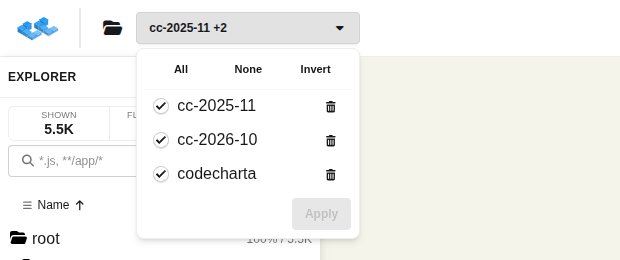
Section titled “Choose the maps shown”The button next to the folder names the map on screen, with a count such as +2 when several are shown. Click it to
open the map selector:
- Tick one map to show it alone, or several to show them together in one map.
- All, None and Invert change the selection in one click.
- The trash icon removes a map from the session; the undo icon brings it back before you apply.
- Apply shows the selection. It stays disabled until at least one map is ticked and the selection differs from what is shown. Closing the selector without Apply discards the changes.
To see the difference between two maps instead, switch to Compare.
Open maps from a URL
Section titled “Open maps from a URL”The Web Studio loads maps named in its URL. This is how the online demo starts, and how you link a teammate straight to a map on a server:
https://codecharta.com/visualization/app/index.html?file=codecharta_visualization.cc.json.gz&file=codecharta_analysis.cc.json.gz¤tFilesAreSampleFiles=true| Parameter | Effect |
|---|---|
file=<url> | Loads the map at this URL, relative to the Web Studio or absolute. Repeat it to load several maps. |
area=<metric> | Area metric to start with. |
height=<metric> | Height metric to start with. |
color=<metric> | Color metric to start with. |
edge=<metric> | Edge metric to start with. |
mode=Delta | Opens Compare with the first two maps. Needs at least two files. |
currentFilesAreSampleFiles=true | Treats the maps as samples: the first map the user opens replaces them. |
- A metric the map does not contain is ignored.
- While a
fileparameter is present, the Web Studio keepsarea,height,colorandedgein the address bar up to date, so the URL always reproduces the metrics on screen. - The browser fetches the files itself. A map on another server needs that server to allow cross-origin requests (CORS).